
@rdlabo/ionic-theme-ios26
IonicアプリケーションにiOS26デザインシステムを適用するCSS/JSテーマライブラリです。
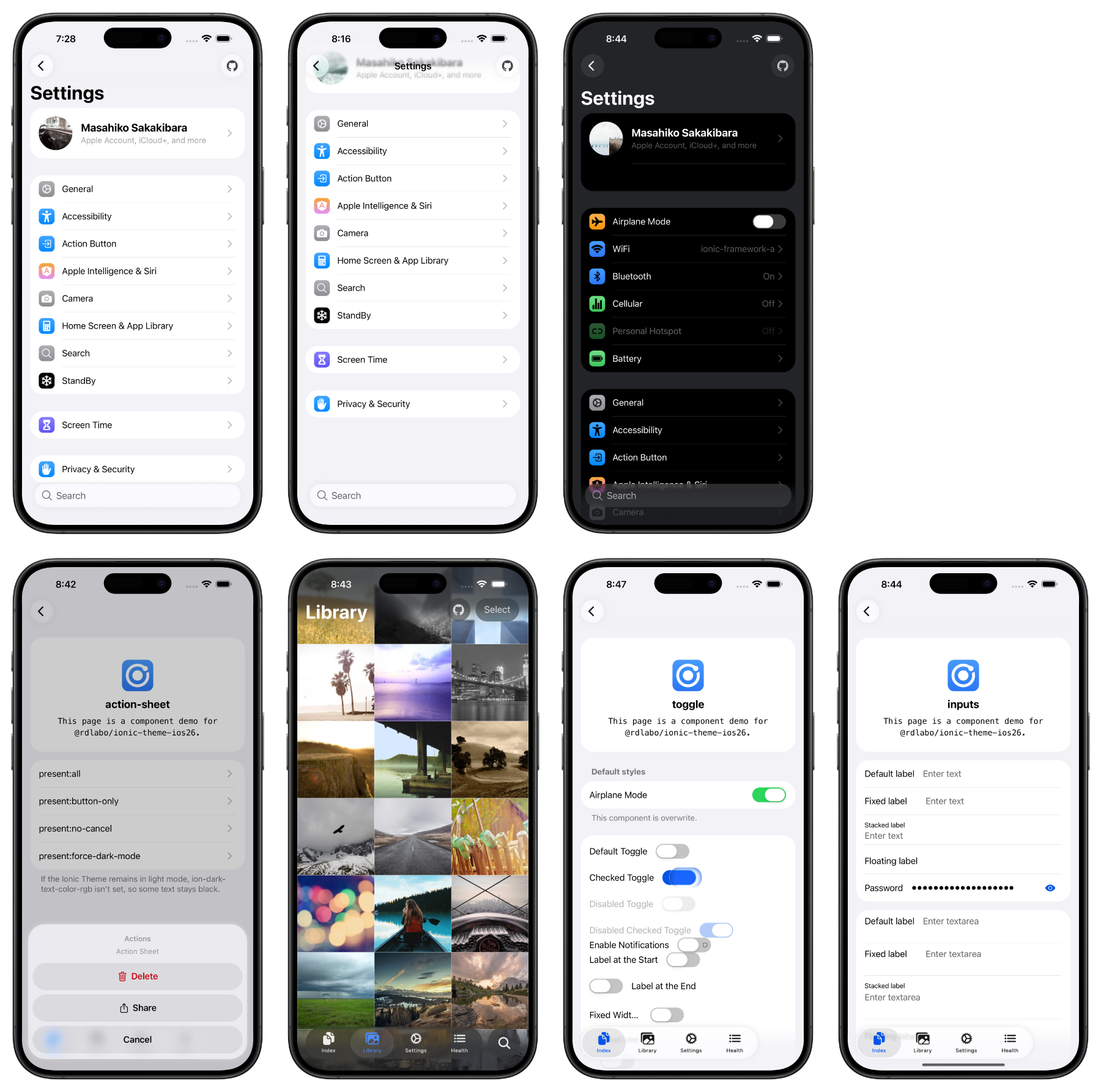
DEMOはこちら: https://ionic-theme-ios26.netlify.app/
概要
このライブラリは、IonicアプリケーションにiOS26デザインシステムをもたらすCSS/JSファイルを提供します。Ionicコンポーネントの見た目を、最新のiOS26デザインガイドラインに合わせて更新します。
Android Design(Material Design 3)テーマも作成中です。ぜひチェックしてください!
💖 このプロジェクトを支援する
このライブラリを気に入っていただけましたか?ご支援が継続的な改善と成長につながります。
スポンサーになると、新機能、改善、メンテナンスに直接貢献できます。
セットアップ
これはIonicプロジェクトを拡張するためのCSSテーマです。単体では動作しないため、Ionic Frameworkと一緒に使ってください。
npm install @rdlabo/ionic-theme-ios26
Note: @ionic/core@ < 8.8.1 を使う場合は、@rdlabo/ionic-theme-ios26@2.2.1 を使ってください。
プロジェクトのメインCSSファイル(例: src/styles.scss)でテーマをインポートします。
@import '@rdlabo/ionic-theme-ios26/dist/css/default-variables.css';
@import '@rdlabo/ionic-theme-ios26/dist/css/ionic-theme-ios26.css';

/**
 * This file is to eliminate the impact of class name changes for iOS26.
 * For example, `ion-buttons ion-button[fill=default]` is not normally implemented, but may be required for iOS26.
 * This file is to eliminate such effects.
 * Note: This is not include `@rdlabo/ionic-theme-md3`
 */
@import '@rdlabo/ionic-theme-ios26/dist/css/md-remove-ios-class-effect.css';

/**
 * If you will use the design of ion-item-group with ion-list on Android as well, import it.
 * More info: https://github.com/rdlabo-dev/ionic-theme-ios26/blob/v2.3.2/USING_ION_ITEM_GROUP.md
 * Note: This is include `@rdlabo/ionic-theme-md3`
 * @import '@rdlabo/ionic-theme-ios26/dist/css/md-ion-list-inset.css';
 */

/*
 * Support Dark Mode
 * We support Ionic Dark Mode. More information is here: https://ionicframework.com/docs/theming/dark-mode
 * use Always:    @import '@rdlabo/ionic-theme-ios26/dist/css/ionic-theme-ios26-dark-always.css'
 * use System:    @import '@rdlabo/ionic-theme-ios26/dist/css/ionic-theme-ios26-dark-system.css'
 * use CSS Class: @import '@rdlabo/ionic-theme-ios26/dist/css/ionic-theme-ios26-dark-class.css'
 */
次に、iOS 26向けのアニメーションを設定します。Ionicの設定オプションに次を追加してください。
import { isPlatform } from '@ionic/core'; // or @ionic/angular/standalone, @ionic/react, @ionic/vue
import { iosTransitionAnimation, popoverEnterAnimation, popoverLeaveAnimation } from '@rdlabo/ionic-theme-ios26';

// Angular
provideIonicAngular({
    ...
    navAnimation: isPlatform('ios') ? iosTransitionAnimation: undefined,
    popoverEnter: isPlatform('ios') ? popoverEnterAnimation: undefined,
    popoverLeave: isPlatform('ios') ? popoverLeaveAnimation: undefined,
});

// React
setupIonicReact({
    ...
    navAnimation: isPlatform('ios') ? iosTransitionAnimation: undefined,
    popoverEnter: isPlatform('ios') ? popoverEnterAnimation: undefined,
    popoverLeave: isPlatform('ios') ? popoverLeaveAnimation: undefined,
});

// Vue
createApp(App)
    .use(IonicVue, {
        ...
        navAnimation: isPlatform('ios') ? iosTransitionAnimation: undefined,
        popoverEnter: isPlatform('ios') ? popoverEnterAnimation: undefined,
        popoverLeave: isPlatform('ios') ? popoverLeaveAnimation: undefined,
})
重要な注意点
ion-item-group の利用
特定の条件下では、ion-item-group を使う必要があります。
  <ion-list inset=true>
    <ion-list-header><ion-label>Label</ion-label></ion-list-header>
+   <ion-item-group>
      <ion-item>...</ion-item>
      <ion-item>...</ion-item>
+   </ion-item-group>
  </ion-list>
詳細は USING_ION_ITEM_GROUP.md を参照してください。
機能
CSS変数
ライブラリのデフォルトスタイルをデザインに合わせてカスタマイズできるよう、いくつかのCSS変数が用意されています。詳細はこのファイルを参照してください: https://github.com/rdlabo-dev/ionic-theme-ios26/blob/v2.3.2/src/styles/default-variables.scss
.ios26-disabled クラス
特定のコンポーネントでiOS26テーマを無効にするには、.ios26-disabled クラスを追加します。
<!-- iOS26 theme applied -->
<ion-button>iOS26 Design</ion-button>

<!-- Standard Ionic iOS styling -->
<ion-button class="ios26-disabled">Standard Ionic Design</ion-button>
Liquid Glass Mixin
liquid glass mixinを使うには、メインパッケージからSCSSファイルをインポートします。
@use '@rdlabo/ionic-theme-ios26/src/styles/utils/api.scss';

ion-textarea label.textarea-wrapper {
  @include api.glass-background;
}
追加デザイン
iOS26デザインへの忠実度をさらに高めるため、このライブラリが提供する追加デザインを実装できます。詳細は次を参照してください:
https://ionic-theme-ios26.netlify.app/main/docs
実験的なアニメーション
この機能は実験的です。この機能なしでもライブラリは利用できます。
ion-tab-button / ion-segment-button の Sheet of Glass
ion-tab-bar / ion-segment を登録すると、ion-tab-button / ion-segment-button にアニメーション効果を表示できます。
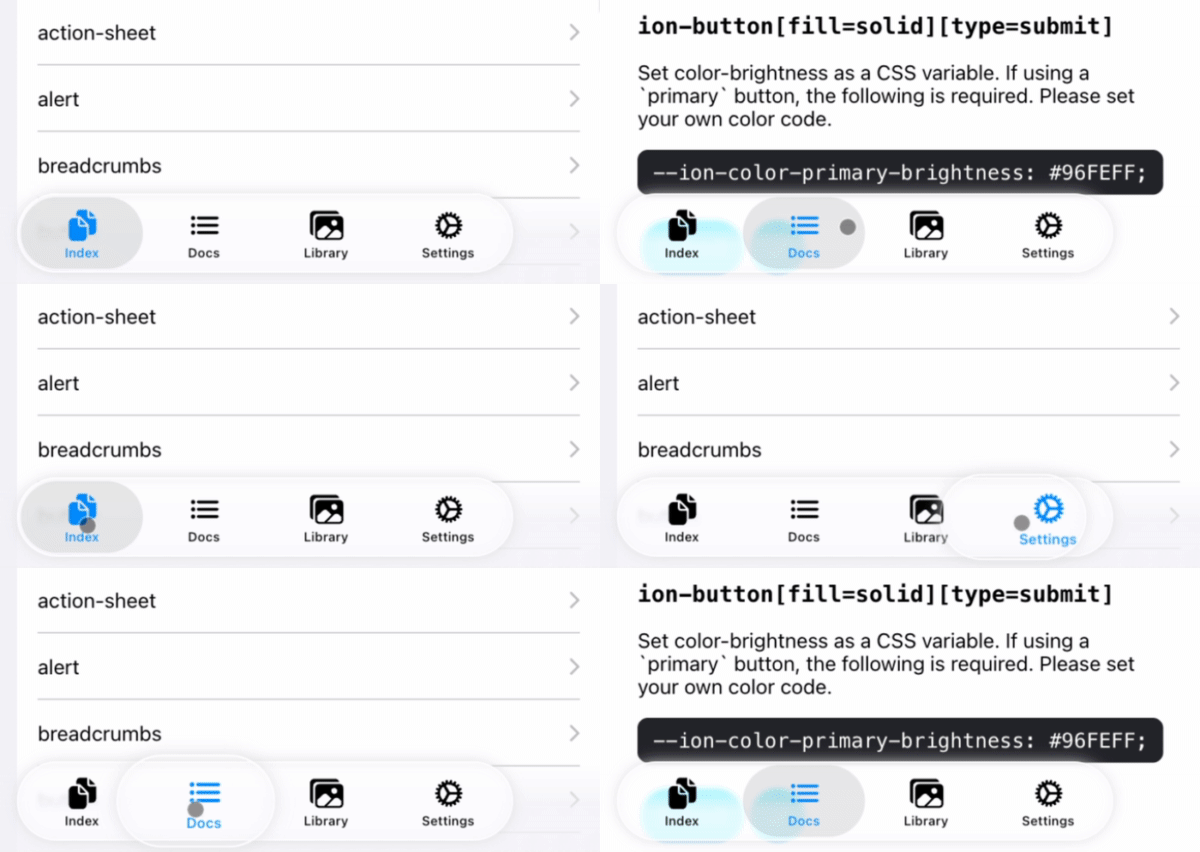
import { registerTabBarEffect, registerSegmentEffect } from '@rdlabo/ionic-theme-ios26';

/**
 * Register DOM elements. Effects are applied using Ionic Gesture and Ionic Animation.
 */
const tabBar = document.querySelector<HTMLElement>('ion-tab-bar');
const segment = document.querySelector<HTMLElement>('ion-segment');
const registeredTabBarEffect = tabBar ? registerTabBarEffect(tabBar) : undefined;
const registeredSegmentEffect = segment ? registerSegmentEffect(segment) : undefined;

const destroy = () => {
  /**
   * If the registered DOM element is removed (e.g., due to page navigation),
   * make sure to destroy the gesture and animation. This will also remove the event listeners.
   * You can re-register them if needed.
   */
  registeredTabBarEffect?.destroy();
  registeredSegmentEffect?.destroy();
}
TabBarSearchable: ion-tab-bar と ion-fab-button の Searchable
ion-tabs 内の指定マークアップ構成で Searchable を有効にします。
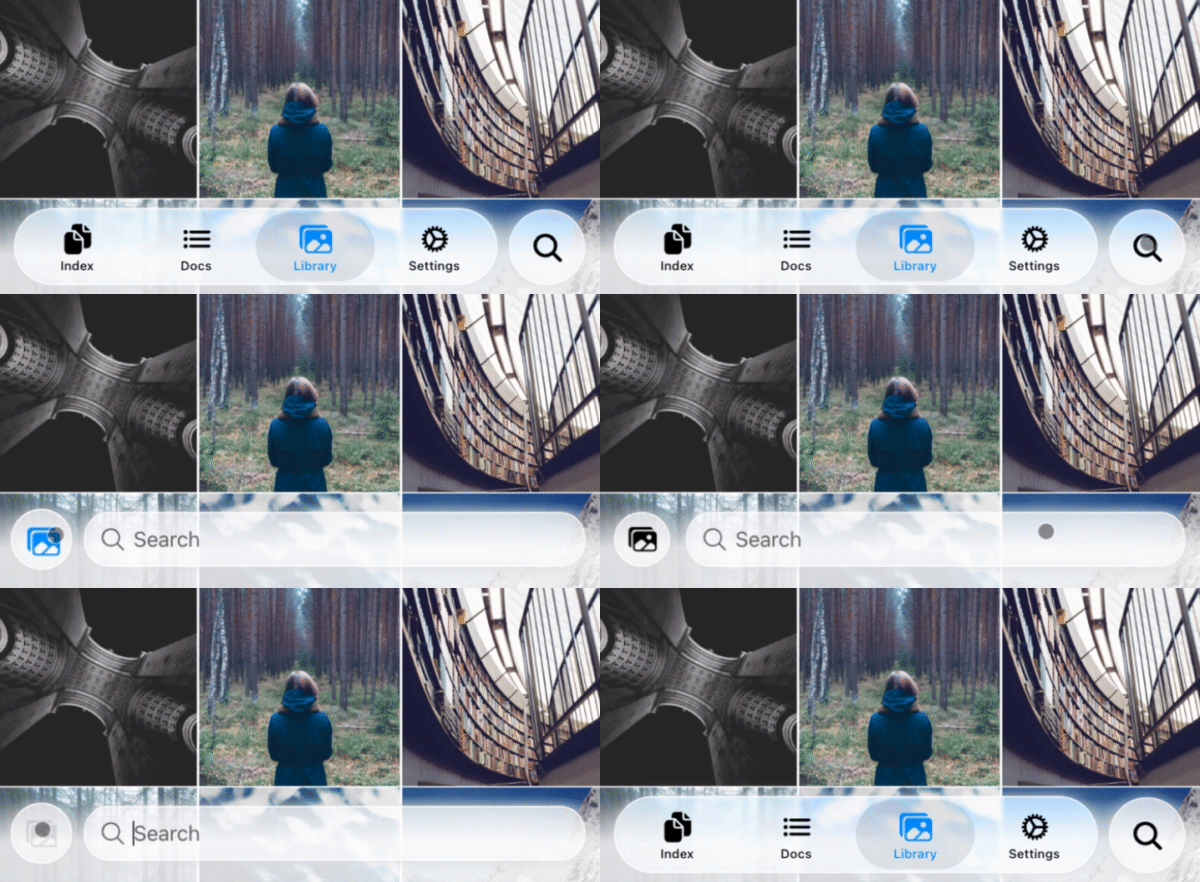
<ion-content>...</ion-content>
<ion-fab vertical="bottom" horizontal="end" slot="fixed">
  <ion-fab-button (click)="present($event)">
    <ion-icon name="search"></ion-icon>
  </ion-fab-button>
</ion-fab>
<ion-footer [translucent]="true">
  <ion-toolbar>
    <ion-buttons slot="start">
      <!-- ion-icon name is set dynamically by the animation -->
      <ion-button fill="default"><ion-icon slot="icon-only"></ion-icon>
      </ion-button>
    </ion-buttons>
    <!-- User set `ionChange` or other events. -->
    <ion-searchbar (ionChange)="example($event)"></ion-searchbar>
  </ion-toolbar>
</ion-footer>
import { attachTabBarSearchable, TabBarSearchableType } from '@rdlabo/ionic-theme-ios26';
import type { TabBarSearchableFunction } from '@rdlabo/ionic-theme-ios26';

let searchableFun: TabBarSearchableFunction | undefined;
const initialize = () => {
  // attachTabBarSearchable has state. You should initialize per page.
  const tabBar = document.querySelector<HTMLElement>('ion-tab-bar');
  const fabButton = document.querySelector<HTMLElement>('ion-fab-button');
  const footer = document.querySelector<HTMLElement>('ion-footer');
  if (!tabBar || !fabButton || !footer) {
    return;
  }
  searchableFun = attachTabBarSearchable(tabBar, fabButton, footer);
}

const present = (event: Event) => {
  searchableFun!(event, TabBarSearchableType.Enter);
}

const dismiss = (event: Event) => {
  searchableFun!(event, TabBarSearchableType.Leave);
}
追加情報
iOS 18でテーマファイルの読み込みを防ぐ方法
テーマファイルをユーザーの端末がiOS 26のときだけ読み込みたい場合(iOS 18のユーザーにはデフォルトのIonic iOSテーマを使わせる場合)、import に supports-condition を追加することで実現できます。
@import '@rdlabo/ionic-theme-ios26/dist/css/default-variables.css' supports(text-wrap: pretty);
@import '@rdlabo/ionic-theme-ios26/dist/css/ionic-theme-ios26.css' supports(text-wrap: pretty);
@import '@rdlabo/ionic-theme-ios26/dist/css/md-remove-ios-class-effect.css' supports(text-wrap: pretty);
@import '@rdlabo/ionic-theme-ios26/dist/css/md-ion-list-inset.css' supports(text-wrap: pretty);
移行サポート
段階的な移行のために、テーマ全体のファイルではなく個別コンポーネントをインポートして、iOS26テーマを選択的に適用できます。
@import '@rdlabo/ionic-theme-ios26/dist/css/utils/translucent';
@import '@rdlabo/ionic-theme-ios26/dist/css/components/ion-action-sheet';
@import '@rdlabo/ionic-theme-ios26/dist/css/components/ion-alert';
@import '@rdlabo/ionic-theme-ios26/dist/css/components/ion-button';
...
個別コンポーネントでのダークモード
個別コンポーネントをダークモード対応でインポートする場合は、CSSではなくSCSSを使います。Always、System、Class モードでセレクタが異なるためです。
Note: 現時点では、
ion-buttonにのみ個別のダークモードスタイルが適用されています。
Always(常時ダークモード):
@use '@rdlabo/ionic-theme-ios26/src/styles/utils/theme-dark';

:root {
    @include theme-dark.default-variables;
}
@include theme-dark.ion-button;
@include theme-dark.ion-fab;
@include theme-dark.ion-tabs;
@include theme-dark.ion-segment;
System(システム設定に追従):
@use '@rdlabo/ionic-theme-ios26/src/styles/utils/theme-dark';

@media (prefers-color-scheme: dark) {
    :root {
        @include theme-dark.default-variables;
    }
    @include theme-dark.ion-button;
    @include theme-dark.ion-fab;
    @include theme-dark.ion-tabs;
    @include theme-dark.ion-segment;
}
Class(CSSクラスで切り替え):
@use '@rdlabo/ionic-theme-ios26/src/styles/utils/theme-dark';

.ion-palette-dark {
    @include theme-dark.default-variables;
    @include theme-dark.ion-button;
    @include theme-dark.ion-fab;
    @include theme-dark.ion-tabs;
    @include theme-dark.ion-segment;
}
開発とテスト
デモアプリケーション
demo/ ディレクトリには、テーマのテストとデモ用のAngularアプリケーションが含まれます。デモを実行するには:
cd demo
npm install
npm start
視覚的回帰テスト
全コンポーネントで一貫したスタイルを保証するため、視覚的回帰テストにPlaywrightを使っています。テストスイートは、ライトモードとダークモードの全ルートのスクリーンショットを自動で取得します。
テストの実行
cd demo

# Run all E2E tests
npm run test:e2e

# Run tests in UI mode (interactive)
npm run test:e2e:ui

# Debug tests
npm run test:e2e:debug

# Update baseline screenshots (when intentionally changing UI)
npm run test:e2e:update